MotoScore has two map modes — Draw Route and Move Map. Knowing when you're in each one is the foundation of everything else. This guide covers drawing from scratch, editing waypoints, importing an existing GPX, and the differences between desktop and mobile.
Draw mode vs. Move Map mode
The two buttons in the top-left of the map toolbar control which mode you're in:
- Draw Route — every click on the map places a waypoint, and the router snaps it to the nearest road automatically.
- Move Map — clicking and dragging pans the map without placing waypoints. Switch to this when you need to reposition the view mid-draw without adding to your route.
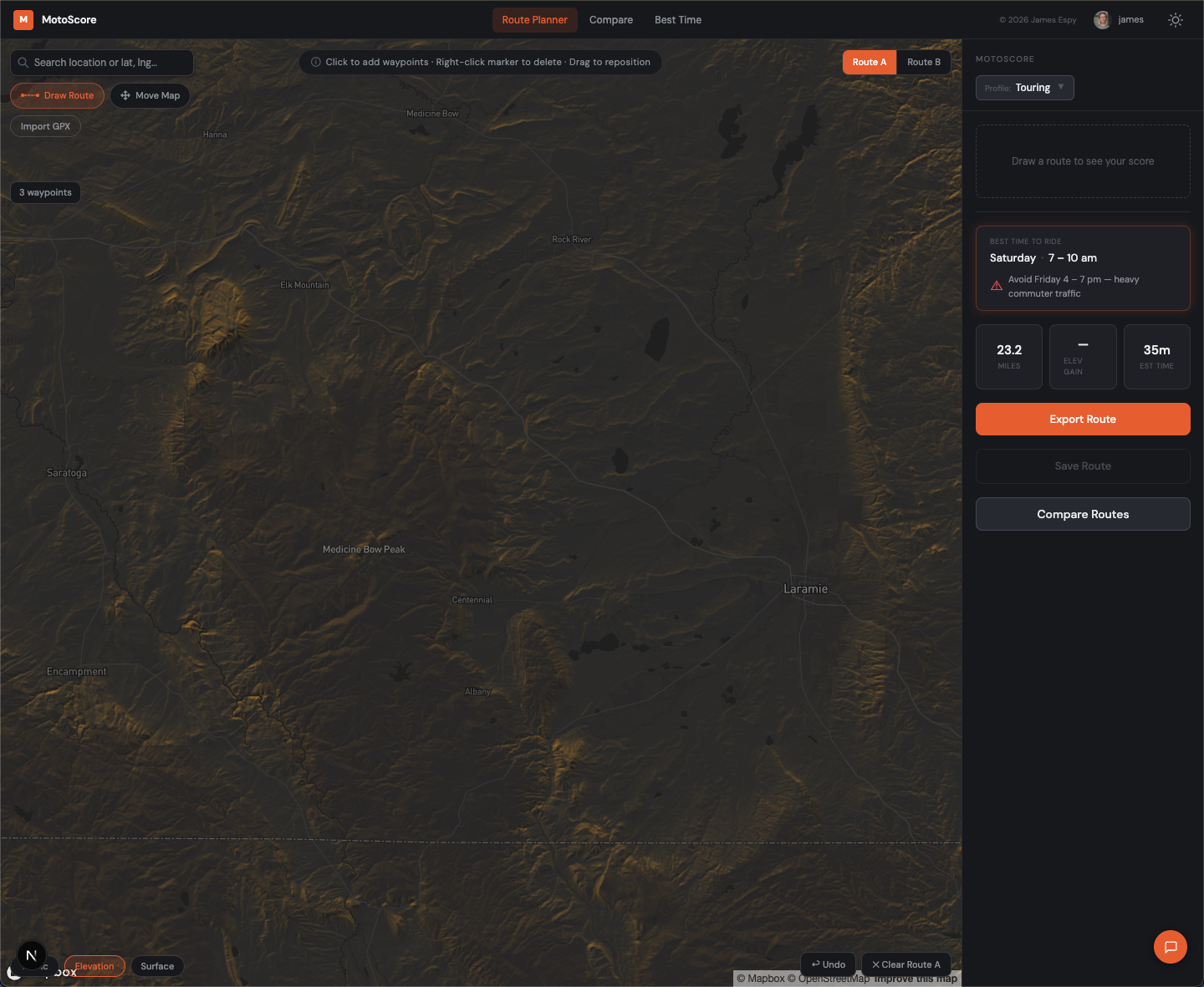
Common mistake: accidentally placing waypoints when you meant to pan. If you drop a stray point, right-click it and choose Delete waypoint, or hit the Undo button in the bottom-right corner of the map.
Drawing a route
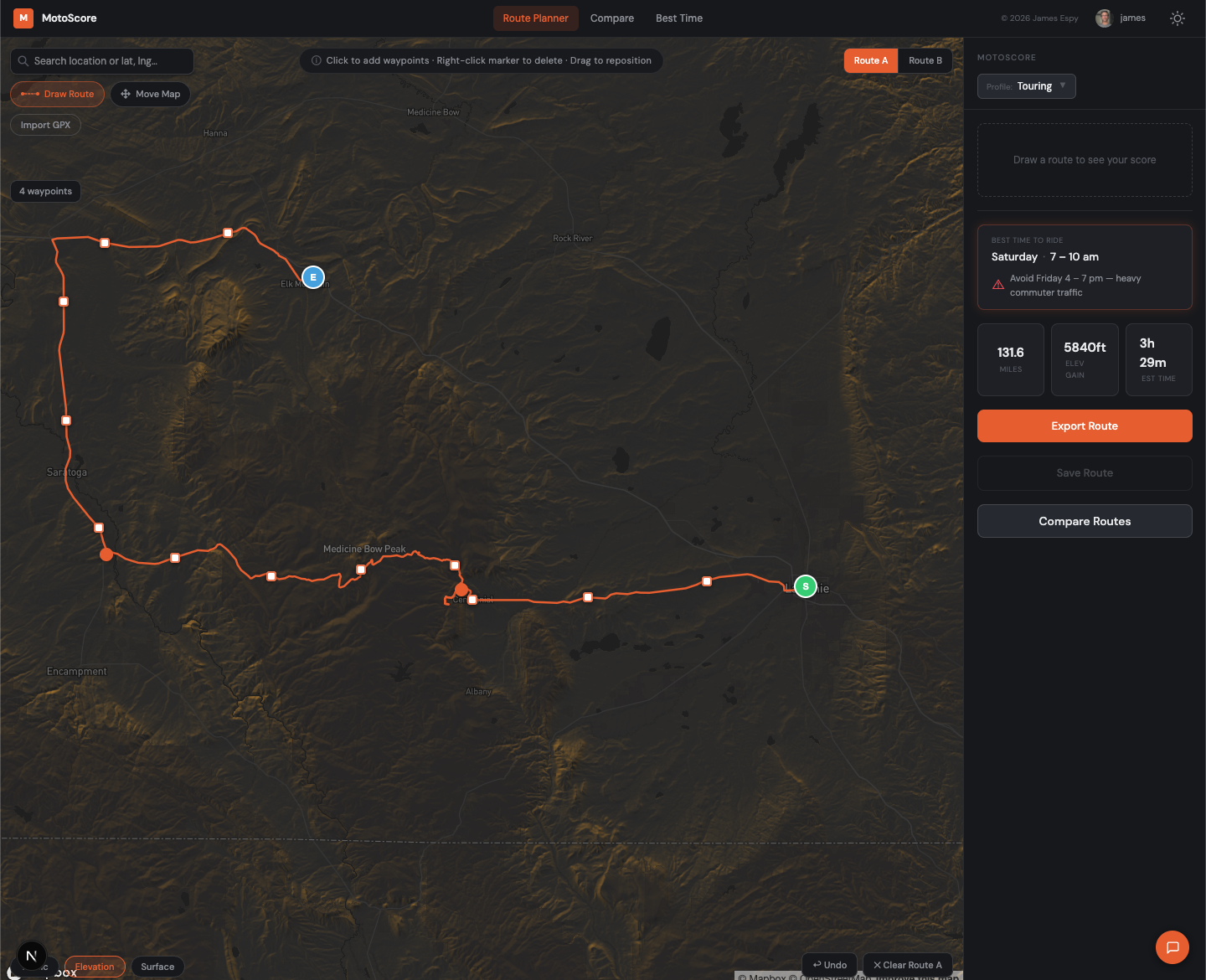
With Draw Route active (highlighted in the top-left toolbar), click your start point. The router snaps it to the nearest road and drops a green pin.
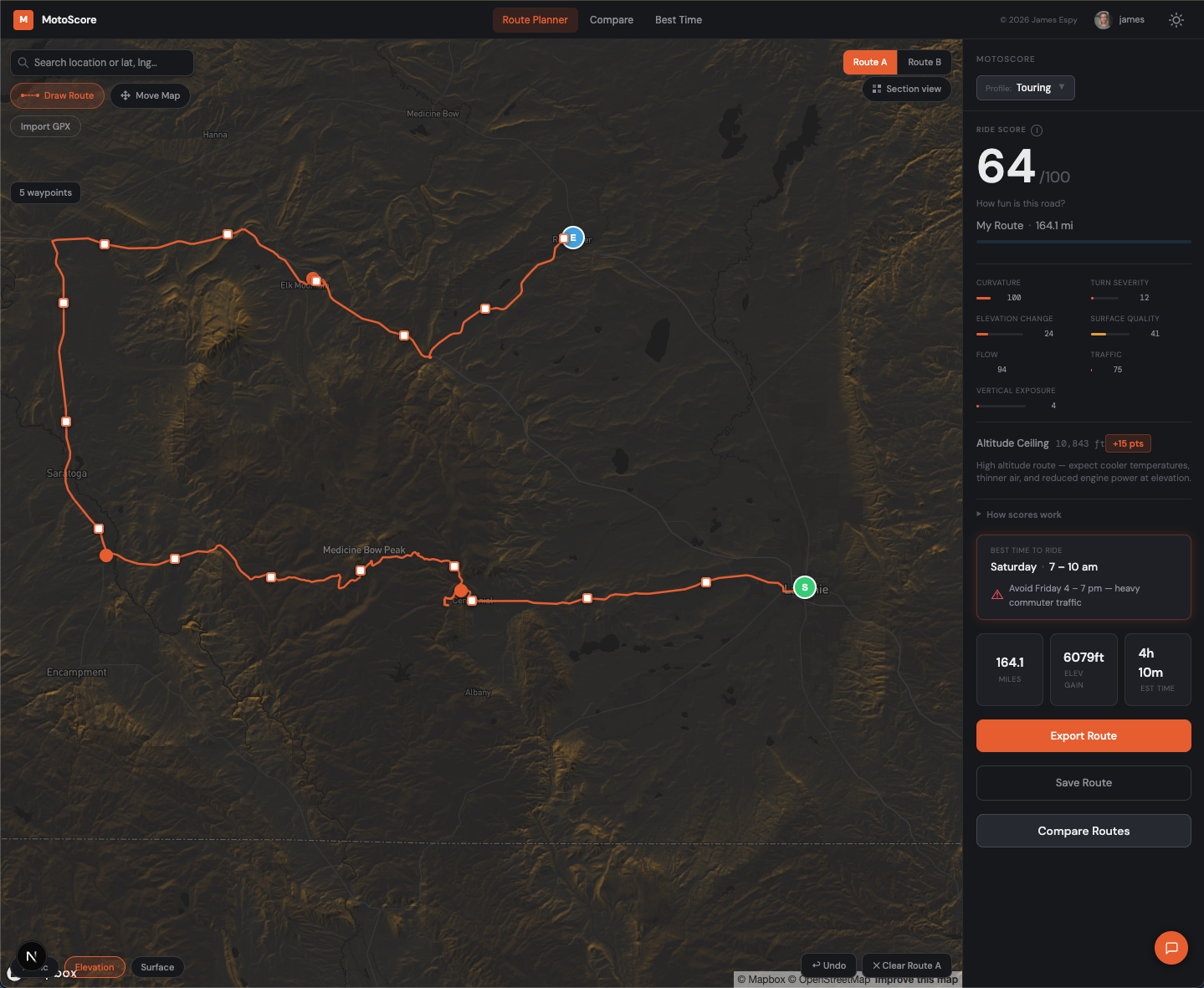
Continue clicking along your intended path. Each click adds a waypoint; MotoScore fills in the road geometry between them automatically — you don't need to click every turn. Place waypoints at the decision points (junctions, where the route changes direction) and let the router handle the road between them.
The score updates in real time in the right panel as you add waypoints.
Editing waypoints
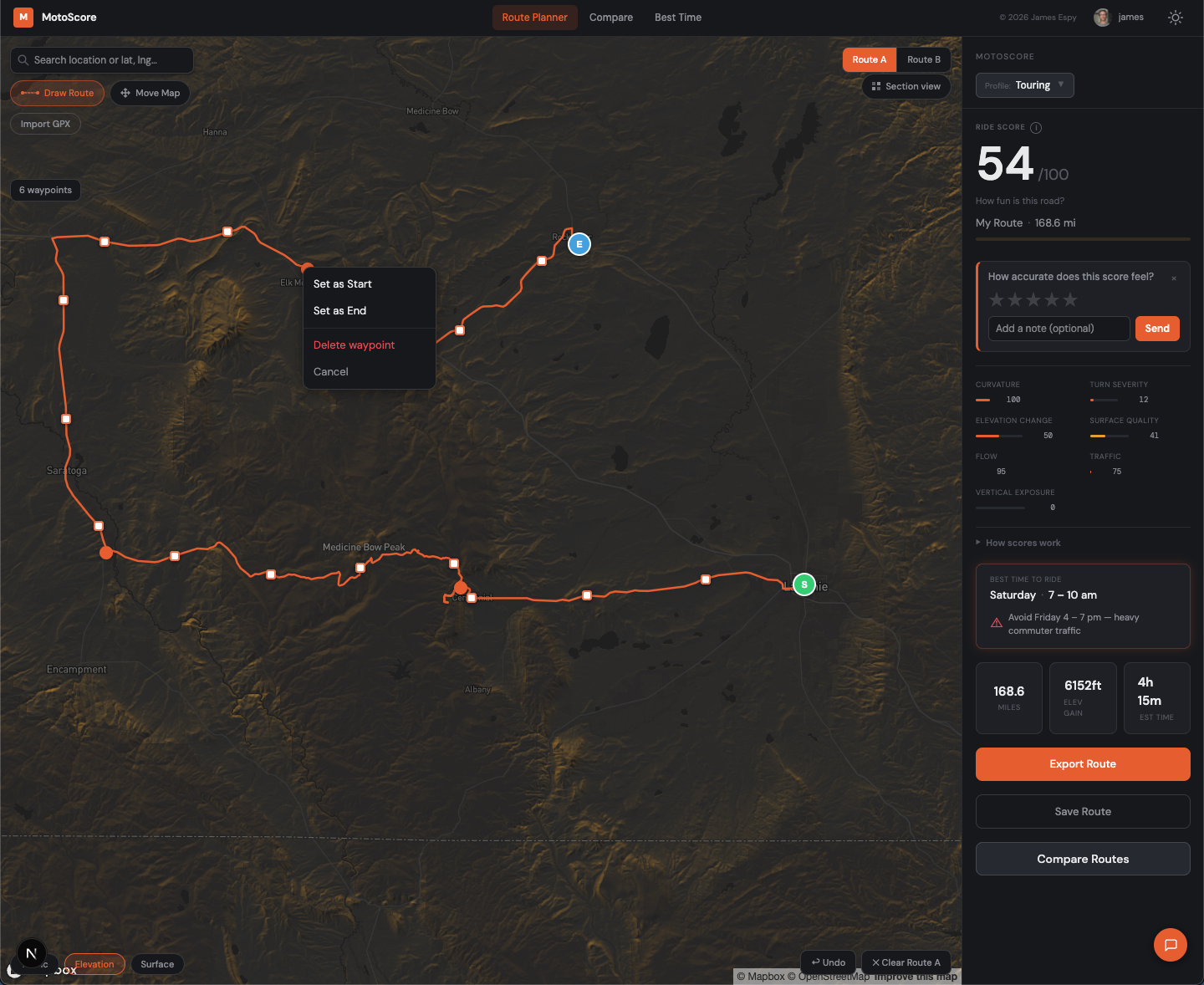
- Delete a waypoint: right-click it and choose Delete waypoint from the context menu.
- Reposition a waypoint: click and drag it to a new location. The route recalculates automatically.
- Add a waypoint mid-route: click anywhere on the existing route line to insert a new waypoint at that position. The rest of the route renumbers to match.
The Undo button in the bottom-right of the map steps back one waypoint at a time — useful if the router took an unexpected path after your last click.
Importing a GPX
If you already have a route from Garmin Explore, Komoot, or anywhere else, you don't need to redraw it. Click Import GPX in the top-left toolbar.
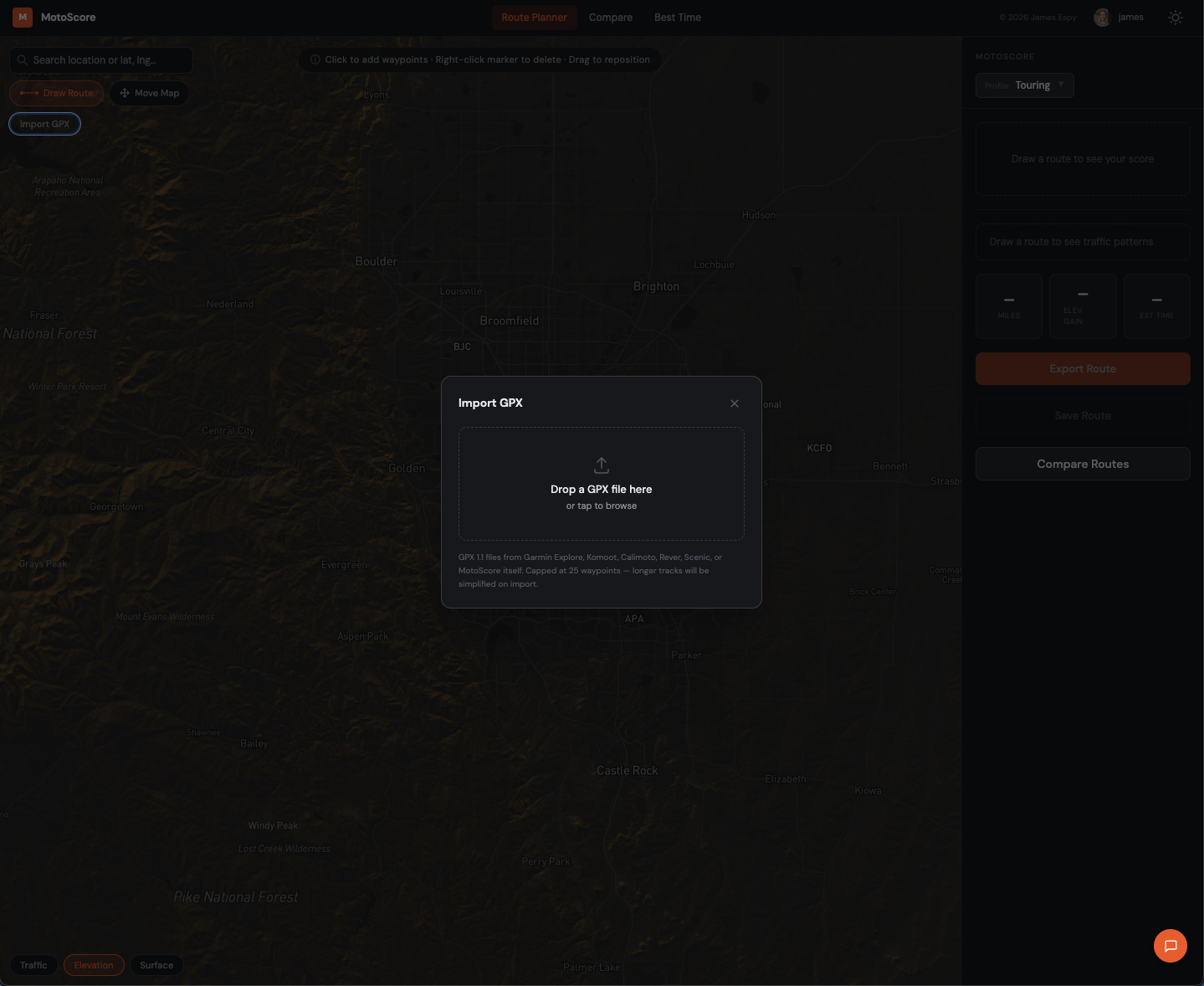
The imported route loads onto the map and scores automatically. From there you can edit it like any drawn route — add or remove waypoints, or drag the path onto roads you'd rather use.
Supported format: GPX 1.1. Files from Garmin, Komoot, Rever, and Scenic all import cleanly.
Import tip: For best results, import route files with sparse waypoints — planned routes from Garmin Explore, Kurviger, or Rever work well. Dense track files (recorded rides, or GPX files exported from MotoScore's Garmin format) may score lower than expected because the router interprets shaping points literally rather than following road geometry. If your imported route scores unexpectedly low, try drawing the route natively instead.
Drawing on mobile
On mobile the toolbar collapses into a floating action button (FAB) in the bottom-right corner. Tap it to toggle between Draw Route and Move Map modes. The score and route details live in a bottom sheet — swipe up to expand it.
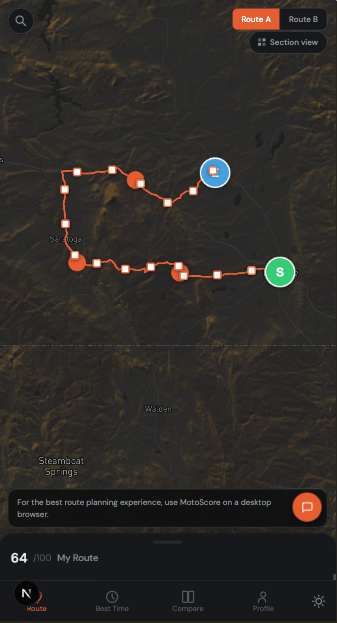
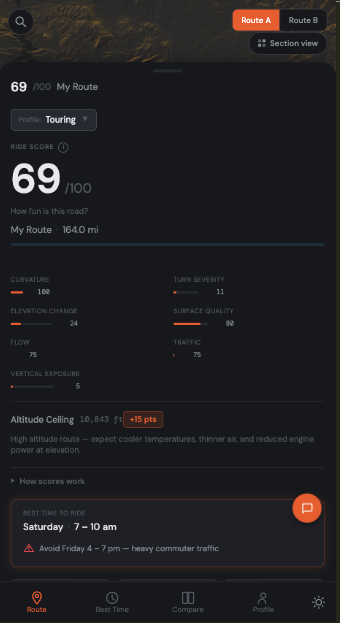
Mobile tip: place fewer waypoints than you would on desktop. Touch targets are larger, which makes it easier to drop an accidental waypoint while panning. Use Move Map mode liberally between clicks.
For long routes, consider drawing on desktop and then sending to your phone via the Google Maps export or a GPX file — it's significantly faster than drawing the full thing on a touchscreen.
Next: export your route
Once your route is drawn and scored, see the export guide to send it to your Garmin or open it in Google Maps.